> ## Documentation Index
> Fetch the complete documentation index at: https://docs.cloudcoding.ai/llms.txt
> Use this file to discover all available pages before exploring further.
# Building Templates through the Site
> Create and customize templates using our web-based template builder and AI assistant
# Building Templates through the Site
Learn how to create powerful automation workflows using Cloud Coding's web-based template building tools. Whether you prefer AI-assisted creation or manual customization, our platform makes it easy to build templates that script Claude Code for your exact needs.
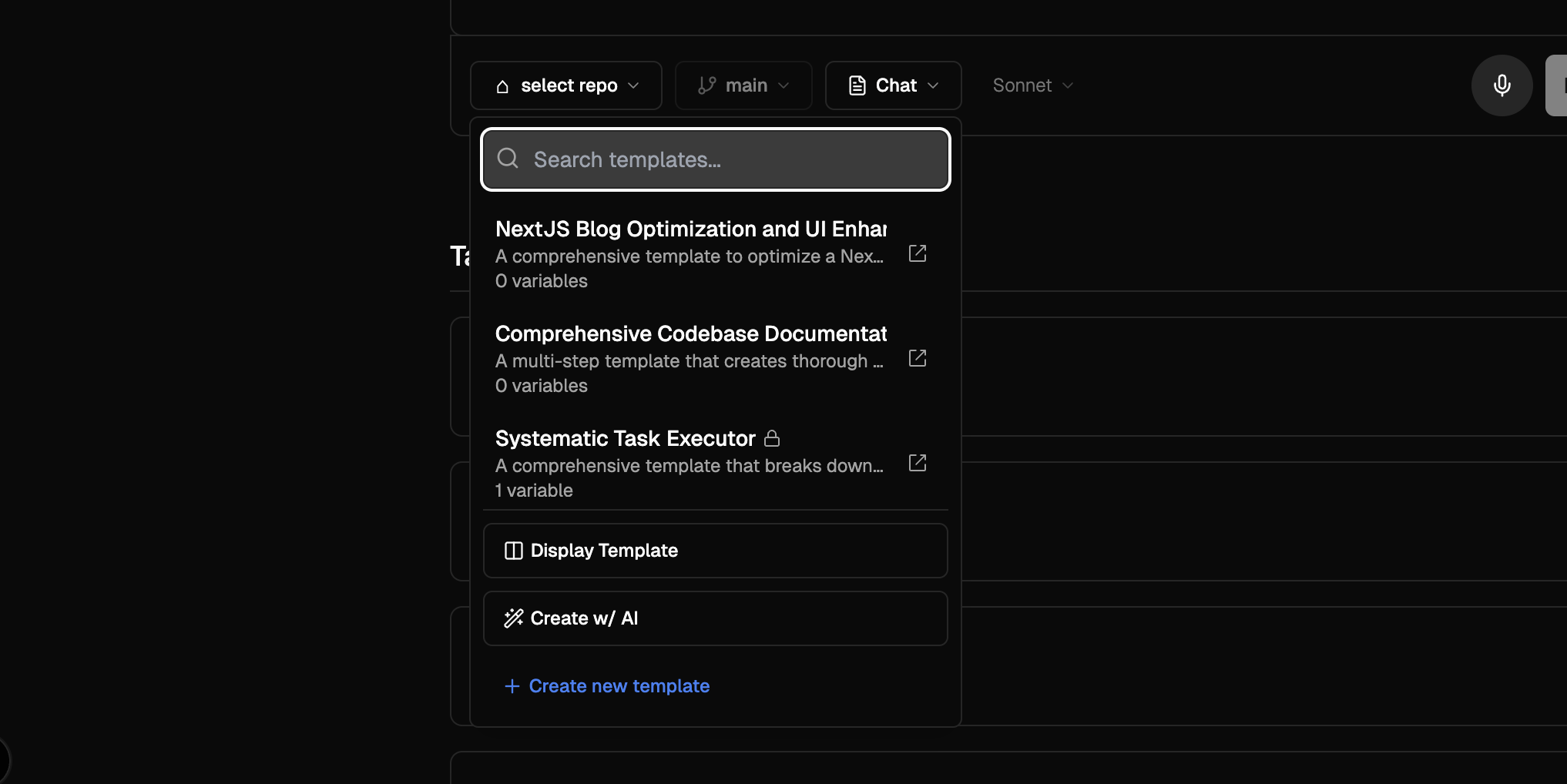 *Two ways to create templates: Use the "Create w/ AI" option from the templates dropdown in chat, or go to cloudcoding.ai/dashboard and select "Select Repo" without choosing a template for a blank slate.*
## What Are Templates?
Templates are a way to **script Claude Code** - the best coding AI agent on the market. They allow you to define a series of messages that Claude Code will handle sequentially, creating sophisticated automation workflows for your development tasks.
### Template Principles
**Templates = Scripted AI Workflows**
A template is essentially a predefined conversation with Claude Code, where each message builds upon the previous one to accomplish complex development tasks automatically.
#### How Templates Work:
1. **Sequential Messages**: Templates contain a series of instructions that Claude Code processes in order
2. **Context Preservation**: Each message can build on the context from previous messages
3. **Tool Selection**: You can specify which tools Claude Code uses at each step
4. **Variable Substitution**: Templates accept variables to customize behavior for different projects
#### Why Script Claude Code?
* 🤖 **Best-in-Class AI**: Claude Code is the most advanced coding AI agent available
* 🎯 **Consistent Results**: Templates ensure repeatable, high-quality outcomes
* ⚡ **Automation**: Transform complex multi-step processes into single-click operations
* 🔧 **Customization**: Tailor workflows to your specific development patterns
## Two Ways to Build Templates
Cloud Coding offers two powerful methods to create templates, both accessible through our web interface at [cloudcoding.ai](https://cloudcoding.ai).
### Method 1: AI-Assisted Template Creation
The fastest way to create templates using our built-in AI assistant.
#### How to Access:
1. **Navigate to Chat**: Go to the main chat page (`/chat`)
2. **Find Templates Dropdown**: Look for the templates section in the interface
3. **Click "Create w/ AI"**: Select the AI creation option from the dropdown
#### What the AI Assistant Does:
* 📝 **Understands Your Goals**: Describe what you want to accomplish in natural language
* 🧠 **Designs the Workflow**: AI creates an optimal sequence of messages for Claude Code
* 🔧 **Configures Tools**: Automatically selects the best tools for each step
* 🎛️ **Sets Variables**: Identifies what should be customizable in your template
#### Example AI Creation Process:
```
You: "Create a template that adds comprehensive testing to a React project"
AI Assistant Creates:
Message 1: Analyze project structure and identify untested components
Message 2: Generate unit tests for all React components
Message 3: Create integration tests for user flows
Message 4: Set up test coverage reporting
Message 5: Run test suite and fix any issues
```
#### Benefits of AI Creation:
* ⚡ **Speed**: Get professional templates in minutes
* 🧪 **Best Practices**: AI incorporates proven workflow patterns
* 🎯 **Optimization**: Templates are designed for maximum effectiveness
* 📚 **Learning**: See how experts structure complex workflows
### Method 2: Manual Template Builder
Complete control over template creation for advanced users and specific use cases.
#### How to Access:
1. **Go to Dashboard**: Navigate to `/dashboard` on [cloudcoding.ai](https://cloudcoding.ai)
2. **Find Template Builder**: Look for the manual template creation tools
3. **Start Building**: Use the interface to craft your custom template
#### Manual Builder Features:
##### Message Editor
* ✏️ **Rich Text Interface**: Write and edit messages with syntax highlighting
* 🔧 **Tool Selection**: Choose specific tools for each message step
* 📁 **Working Directory**: Set directory focus for each step
* 🔄 **Conversation Flow**: Control when to continue or start fresh conversations
##### Variable Management
* 📝 **Custom Variables**: Define what users can customize in your template
* 🏷️ **Variable Types**: Set up text fields, dropdowns, checkboxes, and more
* 🔗 **Variable Insertion**: Use variables anywhere in your message content
* ✅ **Validation Rules**: Ensure users provide valid inputs
##### Testing & Preview
* 🧪 **Test Mode**: Run your template against real repositories
* 👀 **Preview**: See exactly what Claude Code will receive
* 🐛 **Debug**: Identify and fix issues before publishing
* 📊 **Performance**: Monitor execution time and success rates
#### When to Use Manual Building:
* 🎯 **Specific Requirements**: When you need exact control over every step
* 🔧 **Complex Logic**: For workflows with conditional branching or special cases
* 📚 **Learning**: To understand how templates work under the hood
* 🎨 **Customization**: When existing patterns don't fit your needs
## Template Building Best Practices
### 1. Start with Clear Goals
```markdown theme={null}
❌ Vague: "Improve my code"
✅ Specific: "Add TypeScript types to React components and fix linting errors"
```
### 2. Design Sequential Steps
Structure your template as logical, progressive steps:
```json theme={null}
{
"messages": [
{
"tools": ["Read", "LS", "Grep"],
"content": "Step 1: Analyze current codebase structure"
},
{
"tools": ["Edit", "Write"],
"content": "Step 2: Implement changes based on analysis",
"continueConversation": true
},
{
"tools": ["Bash"],
"content": "Step 3: Test and validate changes",
"continueConversation": true
}
]
}
```
### 3. Use Meaningful Variables
Make your templates reusable with well-designed variables:
```json theme={null}
{
"variables": {
"framework": {
"type": "dropdown",
"options": ["React", "Vue", "Angular"],
"description": "Frontend framework to target"
},
"testingLibrary": {
"type": "text",
"default": "Jest",
"description": "Testing framework to use"
}
}
}
```
### 4. Optimize Tool Selection
Choose the right tools for each step:
| Task Type | Recommended Tools | Example |
| ------------------ | ---------------------------- | -------------------------------- |
| **Analysis** | `Read`, `LS`, `Grep` | Understanding codebase structure |
| **Implementation** | `Edit`, `Write`, `MultiEdit` | Making code changes |
| **Validation** | `Bash` | Running tests and builds |
| **Planning** | `Task` | Breaking down complex work |
### 5. Test Thoroughly
Before publishing your template:
* ✅ **Test on Multiple Repos**: Ensure it works across different codebases
* ✅ **Try Different Variables**: Test various input combinations
* ✅ **Check Error Handling**: Verify graceful failure modes
* ✅ **Validate Outputs**: Confirm the template produces expected results
## Template Management
### Organizing Your Templates
#### Categories and Tags
* 📂 **Categorize**: Group templates by purpose (testing, deployment, refactoring)
* 🏷️ **Tag Strategically**: Use descriptive tags for easy discovery
* 📊 **Track Usage**: Monitor which templates are most effective
#### Version Control
* 📈 **Iterate**: Improve templates based on usage feedback
* 🔄 **Update**: Keep templates current with new best practices
* 📋 **Document Changes**: Maintain clear version histories
### Sharing and Collaboration
#### Team Templates
* 👥 **Share with Team**: Make successful templates available to colleagues
* 📚 **Create Standards**: Establish template conventions for your organization
* 🎓 **Training**: Use templates to teach best practices
#### Community Contribution
* 🌍 **Public Templates**: Share useful templates with the broader community
* ⭐ **Template Gallery**: Browse templates created by other developers
* 🤝 **Collaborative Improvement**: Work together to refine popular templates
## Getting Started
### Quick Start Checklist
1. **🎯 Define Your Goal**: What development task do you want to automate?
2. **🤖 Try AI Creation First**:
* Go to `/chat` on [cloudcoding.ai](https://cloudcoding.ai)
* Find the templates dropdown
* Click "Create w/ AI"
* Describe your automation goal
3. **🧪 Test Your Template**:
* Run it on a test repository
* Verify it produces expected results
* Refine if needed
4. **🔧 Customize if Needed**:
* Switch to manual builder on `/dashboard`
* Fine-tune messages and variables
* Add advanced logic if required
5. **📚 Save and Share**:
* Save your template for future use
* Share with your team
* Consider contributing to the community
### Example: Creating Your First Template
Let's walk through creating a "Code Review Preparation" template:
#### Goal
Automatically prepare code for review by fixing formatting, adding documentation, and running quality checks.
#### Using AI Creation:
1. **Go to Chat**: Navigate to `/chat`
2. **Select "Create w/ AI"** from templates dropdown
3. **Describe Goal**: "Create a template that prepares code for review by fixing formatting, adding missing documentation, and running linting checks"
4. **Review AI Suggestion**: The AI will create a multi-step workflow
5. **Test & Refine**: Run on a test repository and adjust as needed
#### Expected AI Output:
```json theme={null}
{
"name": "Code Review Preparation",
"description": "Automatically prepare code for review",
"variables": {
"includeTests": {
"type": "boolean",
"default": true,
"description": "Run test suite as part of preparation"
}
},
"messages": [
{
"tools": ["Read", "LS"],
"content": "Analyze codebase and identify files needing review preparation"
},
{
"tools": ["Edit", "MultiEdit"],
"content": "Fix code formatting and style issues",
"continueConversation": true
},
{
"tools": ["Edit", "Write"],
"content": "Add missing documentation and comments",
"continueConversation": true
},
{
"tools": ["Bash"],
"content": "Run linting and quality checks{{#if includeTests}}, including test suite{{/if}}",
"continueConversation": true
}
]
}
```
## Advanced Features
### Conditional Logic
Use template variables to create conditional workflows:
```json theme={null}
{
"content": "{{#if useTypeScript}}Add TypeScript types{{else}}Add JSDoc comments{{/if}}"
}
```
### Dynamic Tool Selection
Adjust tools based on project characteristics:
```json theme={null}
{
"tools": ["{{#if hasTests}}Bash{{/if}}", "Edit", "Write"]
}
```
### Error Handling
Build robust templates that handle edge cases:
```json theme={null}
{
"content": "Try to implement feature X, and if it fails due to missing dependencies, install them first and retry"
}
```
## Support and Resources
### Getting Help
* 💬 **Community Forum**: Connect with other template builders
* 📧 **Support Team**: Contact us for complex template needs
* 📚 **Documentation**: Explore detailed guides and examples
* 🎥 **Video Tutorials**: Watch template creation in action
### Staying Updated
* 📰 **Release Notes**: Stay informed about new features
* 🔔 **Newsletter**: Get template building tips and best practices
* 🎯 **Feature Requests**: Suggest improvements to the template system
Start creating your first template today! Try the AI-assisted builder at [cloudcoding.ai/chat](https://cloudcoding.ai/chat) or dive into manual creation at [cloudcoding.ai/dashboard](https://cloudcoding.ai/dashboard).
*Two ways to create templates: Use the "Create w/ AI" option from the templates dropdown in chat, or go to cloudcoding.ai/dashboard and select "Select Repo" without choosing a template for a blank slate.*
## What Are Templates?
Templates are a way to **script Claude Code** - the best coding AI agent on the market. They allow you to define a series of messages that Claude Code will handle sequentially, creating sophisticated automation workflows for your development tasks.
### Template Principles
**Templates = Scripted AI Workflows**
A template is essentially a predefined conversation with Claude Code, where each message builds upon the previous one to accomplish complex development tasks automatically.
#### How Templates Work:
1. **Sequential Messages**: Templates contain a series of instructions that Claude Code processes in order
2. **Context Preservation**: Each message can build on the context from previous messages
3. **Tool Selection**: You can specify which tools Claude Code uses at each step
4. **Variable Substitution**: Templates accept variables to customize behavior for different projects
#### Why Script Claude Code?
* 🤖 **Best-in-Class AI**: Claude Code is the most advanced coding AI agent available
* 🎯 **Consistent Results**: Templates ensure repeatable, high-quality outcomes
* ⚡ **Automation**: Transform complex multi-step processes into single-click operations
* 🔧 **Customization**: Tailor workflows to your specific development patterns
## Two Ways to Build Templates
Cloud Coding offers two powerful methods to create templates, both accessible through our web interface at [cloudcoding.ai](https://cloudcoding.ai).
### Method 1: AI-Assisted Template Creation
The fastest way to create templates using our built-in AI assistant.
#### How to Access:
1. **Navigate to Chat**: Go to the main chat page (`/chat`)
2. **Find Templates Dropdown**: Look for the templates section in the interface
3. **Click "Create w/ AI"**: Select the AI creation option from the dropdown
#### What the AI Assistant Does:
* 📝 **Understands Your Goals**: Describe what you want to accomplish in natural language
* 🧠 **Designs the Workflow**: AI creates an optimal sequence of messages for Claude Code
* 🔧 **Configures Tools**: Automatically selects the best tools for each step
* 🎛️ **Sets Variables**: Identifies what should be customizable in your template
#### Example AI Creation Process:
```
You: "Create a template that adds comprehensive testing to a React project"
AI Assistant Creates:
Message 1: Analyze project structure and identify untested components
Message 2: Generate unit tests for all React components
Message 3: Create integration tests for user flows
Message 4: Set up test coverage reporting
Message 5: Run test suite and fix any issues
```
#### Benefits of AI Creation:
* ⚡ **Speed**: Get professional templates in minutes
* 🧪 **Best Practices**: AI incorporates proven workflow patterns
* 🎯 **Optimization**: Templates are designed for maximum effectiveness
* 📚 **Learning**: See how experts structure complex workflows
### Method 2: Manual Template Builder
Complete control over template creation for advanced users and specific use cases.
#### How to Access:
1. **Go to Dashboard**: Navigate to `/dashboard` on [cloudcoding.ai](https://cloudcoding.ai)
2. **Find Template Builder**: Look for the manual template creation tools
3. **Start Building**: Use the interface to craft your custom template
#### Manual Builder Features:
##### Message Editor
* ✏️ **Rich Text Interface**: Write and edit messages with syntax highlighting
* 🔧 **Tool Selection**: Choose specific tools for each message step
* 📁 **Working Directory**: Set directory focus for each step
* 🔄 **Conversation Flow**: Control when to continue or start fresh conversations
##### Variable Management
* 📝 **Custom Variables**: Define what users can customize in your template
* 🏷️ **Variable Types**: Set up text fields, dropdowns, checkboxes, and more
* 🔗 **Variable Insertion**: Use variables anywhere in your message content
* ✅ **Validation Rules**: Ensure users provide valid inputs
##### Testing & Preview
* 🧪 **Test Mode**: Run your template against real repositories
* 👀 **Preview**: See exactly what Claude Code will receive
* 🐛 **Debug**: Identify and fix issues before publishing
* 📊 **Performance**: Monitor execution time and success rates
#### When to Use Manual Building:
* 🎯 **Specific Requirements**: When you need exact control over every step
* 🔧 **Complex Logic**: For workflows with conditional branching or special cases
* 📚 **Learning**: To understand how templates work under the hood
* 🎨 **Customization**: When existing patterns don't fit your needs
## Template Building Best Practices
### 1. Start with Clear Goals
```markdown theme={null}
❌ Vague: "Improve my code"
✅ Specific: "Add TypeScript types to React components and fix linting errors"
```
### 2. Design Sequential Steps
Structure your template as logical, progressive steps:
```json theme={null}
{
"messages": [
{
"tools": ["Read", "LS", "Grep"],
"content": "Step 1: Analyze current codebase structure"
},
{
"tools": ["Edit", "Write"],
"content": "Step 2: Implement changes based on analysis",
"continueConversation": true
},
{
"tools": ["Bash"],
"content": "Step 3: Test and validate changes",
"continueConversation": true
}
]
}
```
### 3. Use Meaningful Variables
Make your templates reusable with well-designed variables:
```json theme={null}
{
"variables": {
"framework": {
"type": "dropdown",
"options": ["React", "Vue", "Angular"],
"description": "Frontend framework to target"
},
"testingLibrary": {
"type": "text",
"default": "Jest",
"description": "Testing framework to use"
}
}
}
```
### 4. Optimize Tool Selection
Choose the right tools for each step:
| Task Type | Recommended Tools | Example |
| ------------------ | ---------------------------- | -------------------------------- |
| **Analysis** | `Read`, `LS`, `Grep` | Understanding codebase structure |
| **Implementation** | `Edit`, `Write`, `MultiEdit` | Making code changes |
| **Validation** | `Bash` | Running tests and builds |
| **Planning** | `Task` | Breaking down complex work |
### 5. Test Thoroughly
Before publishing your template:
* ✅ **Test on Multiple Repos**: Ensure it works across different codebases
* ✅ **Try Different Variables**: Test various input combinations
* ✅ **Check Error Handling**: Verify graceful failure modes
* ✅ **Validate Outputs**: Confirm the template produces expected results
## Template Management
### Organizing Your Templates
#### Categories and Tags
* 📂 **Categorize**: Group templates by purpose (testing, deployment, refactoring)
* 🏷️ **Tag Strategically**: Use descriptive tags for easy discovery
* 📊 **Track Usage**: Monitor which templates are most effective
#### Version Control
* 📈 **Iterate**: Improve templates based on usage feedback
* 🔄 **Update**: Keep templates current with new best practices
* 📋 **Document Changes**: Maintain clear version histories
### Sharing and Collaboration
#### Team Templates
* 👥 **Share with Team**: Make successful templates available to colleagues
* 📚 **Create Standards**: Establish template conventions for your organization
* 🎓 **Training**: Use templates to teach best practices
#### Community Contribution
* 🌍 **Public Templates**: Share useful templates with the broader community
* ⭐ **Template Gallery**: Browse templates created by other developers
* 🤝 **Collaborative Improvement**: Work together to refine popular templates
## Getting Started
### Quick Start Checklist
1. **🎯 Define Your Goal**: What development task do you want to automate?
2. **🤖 Try AI Creation First**:
* Go to `/chat` on [cloudcoding.ai](https://cloudcoding.ai)
* Find the templates dropdown
* Click "Create w/ AI"
* Describe your automation goal
3. **🧪 Test Your Template**:
* Run it on a test repository
* Verify it produces expected results
* Refine if needed
4. **🔧 Customize if Needed**:
* Switch to manual builder on `/dashboard`
* Fine-tune messages and variables
* Add advanced logic if required
5. **📚 Save and Share**:
* Save your template for future use
* Share with your team
* Consider contributing to the community
### Example: Creating Your First Template
Let's walk through creating a "Code Review Preparation" template:
#### Goal
Automatically prepare code for review by fixing formatting, adding documentation, and running quality checks.
#### Using AI Creation:
1. **Go to Chat**: Navigate to `/chat`
2. **Select "Create w/ AI"** from templates dropdown
3. **Describe Goal**: "Create a template that prepares code for review by fixing formatting, adding missing documentation, and running linting checks"
4. **Review AI Suggestion**: The AI will create a multi-step workflow
5. **Test & Refine**: Run on a test repository and adjust as needed
#### Expected AI Output:
```json theme={null}
{
"name": "Code Review Preparation",
"description": "Automatically prepare code for review",
"variables": {
"includeTests": {
"type": "boolean",
"default": true,
"description": "Run test suite as part of preparation"
}
},
"messages": [
{
"tools": ["Read", "LS"],
"content": "Analyze codebase and identify files needing review preparation"
},
{
"tools": ["Edit", "MultiEdit"],
"content": "Fix code formatting and style issues",
"continueConversation": true
},
{
"tools": ["Edit", "Write"],
"content": "Add missing documentation and comments",
"continueConversation": true
},
{
"tools": ["Bash"],
"content": "Run linting and quality checks{{#if includeTests}}, including test suite{{/if}}",
"continueConversation": true
}
]
}
```
## Advanced Features
### Conditional Logic
Use template variables to create conditional workflows:
```json theme={null}
{
"content": "{{#if useTypeScript}}Add TypeScript types{{else}}Add JSDoc comments{{/if}}"
}
```
### Dynamic Tool Selection
Adjust tools based on project characteristics:
```json theme={null}
{
"tools": ["{{#if hasTests}}Bash{{/if}}", "Edit", "Write"]
}
```
### Error Handling
Build robust templates that handle edge cases:
```json theme={null}
{
"content": "Try to implement feature X, and if it fails due to missing dependencies, install them first and retry"
}
```
## Support and Resources
### Getting Help
* 💬 **Community Forum**: Connect with other template builders
* 📧 **Support Team**: Contact us for complex template needs
* 📚 **Documentation**: Explore detailed guides and examples
* 🎥 **Video Tutorials**: Watch template creation in action
### Staying Updated
* 📰 **Release Notes**: Stay informed about new features
* 🔔 **Newsletter**: Get template building tips and best practices
* 🎯 **Feature Requests**: Suggest improvements to the template system
Start creating your first template today! Try the AI-assisted builder at [cloudcoding.ai/chat](https://cloudcoding.ai/chat) or dive into manual creation at [cloudcoding.ai/dashboard](https://cloudcoding.ai/dashboard).